Free PDF Tools Online
Free PDF Tools Online: How to Merge, Compress, Split, Edit, Protect and Convert PDFs
PDF files are everywhere. Students use them for assignments and notes, businesses use them for contracts and reports, and professionals rely on them for invoices, presentations, forms, and documents.
The problem is that working with PDFs is not always simple. You may need to combine several files into one document, reduce a large PDF before emailing it, extract a few pages, edit some text, or protect a confidential document with a password.
Fortunately, you don't always need expensive desktop software to handle these everyday tasks. Modern online PDF tools can help you perform many common PDF operations directly from a web browser.
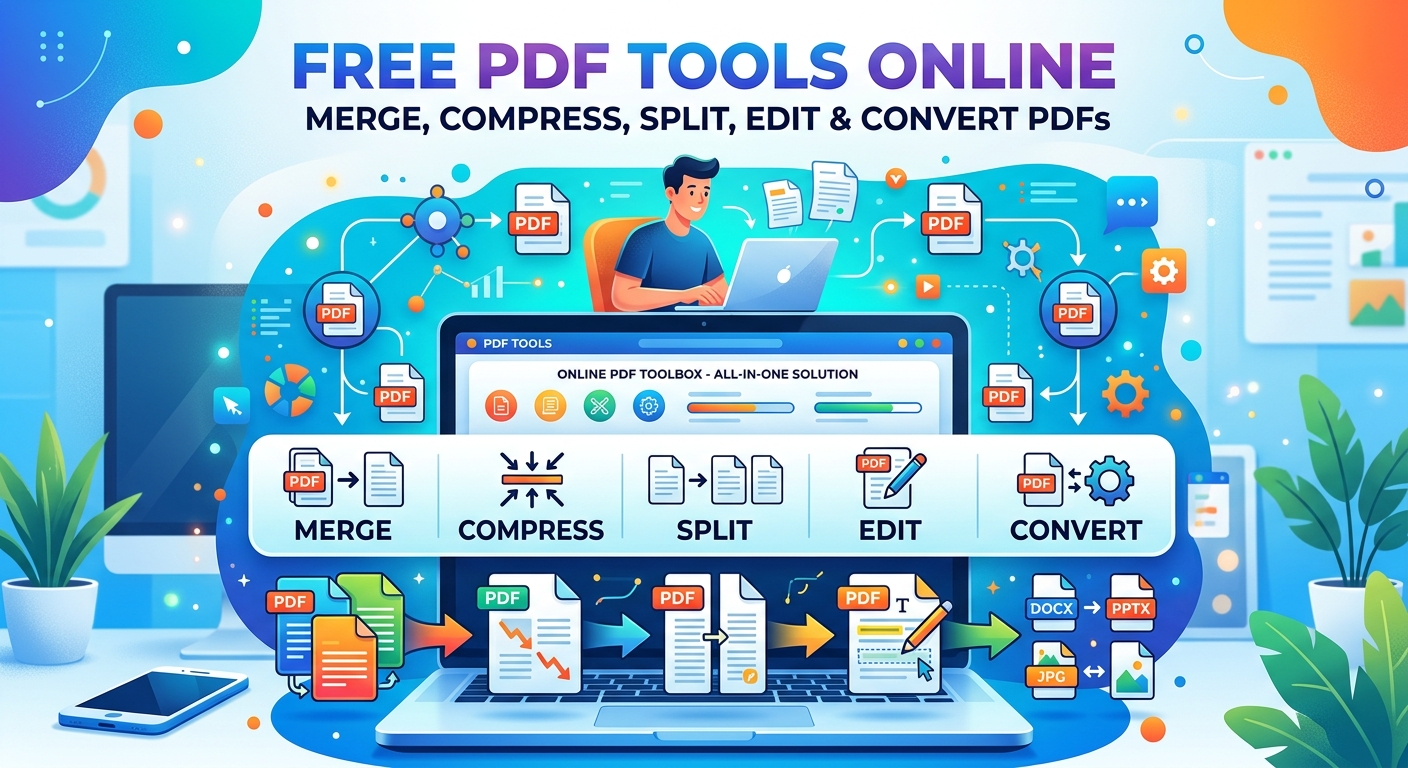
With SmartConvertMax, you can work with PDFs online for common tasks such as merging PDFs, splitting PDFs, compressing PDFs, editing PDFs, protecting, unlocking, and converting documents without installing additional software.
What Can You Do With an Online PDF Tool?
A PDF tool is designed to perform a specific operation on a PDF file. Some platforms offer one function, while others provide a complete collection of document tools.
Common PDF tasks include:
Extract specific pages
Organize pages and documents
The best tool depends on what you are trying to accomplish.
For example, if you have five separate reports and need to send them as one document, a PDF merger is appropriate. If your PDF is too large to attach to an email, a PDF compressor is more useful.
How to Merge Multiple PDF Files Into One
One of the most common PDF tasks is combining several documents into a single file.
Imagine you have:
A cover page
A report
An appendix
Several supporting documents
Instead of sending multiple attachments, you can merge PDFs online into one document.
How to merge PDFs online
Open a PDF merging tool.
Select the PDF files you want to combine.
Arrange them in the required order.
Start the merge process.
Download the resulting PDF.
The order matters because the pages normally appear in the same sequence as the files you arrange.
When should you merge PDFs?
PDF merging is useful when:
Combining business reports
Creating a complete school assignment
Joining invoices and receipts
Combining scanned documents
Preparing application documents
Creating a single project portfolio
Sending multiple related documents by email
If you only need certain pages from different documents, you may want to extract those pages first and then merge the selected files.
How to Compress a PDF Without Losing Too Much Quality
Large PDF files can be inconvenient.
A document containing high-resolution images or scanned pages may become too large to upload to a website, attach to an email, or store efficiently.
PDF compression reduces the file size while attempting to maintain useful document quality.
You can use a free online PDF compressor when you need to reduce the size of a PDF before uploading, emailing, or sharing it.
How to compress a PDF
Open the PDF compressor.
Upload the large PDF.
Choose the available compression option if provided.
Process the document.
Download the smaller PDF.
Open it and check the text and images before sharing it.
The amount of compression possible depends heavily on what's inside the PDF.
A text-heavy document may already be relatively small, while a PDF containing many high-resolution photographs can often be reduced much more.
How do you compress a PDF without losing quality?
There is always a balance between file size and visual quality.
If a PDF contains important diagrams, photographs, charts, or scanned documents, excessive compression can make those elements blurry.
For professional documents, applications, and presentations, it is a good idea to open the compressed file and check:
Text readability
Image sharpness
Page layout
Charts and diagrams
Signatures
Scanned pages
If the document still looks clear, the compression has achieved a useful balance.
How to Split a PDF Into Individual Pages
Sometimes you don't need the entire PDF.
For example, you might have a 30-page document but only need pages 4, 7, and 12. Sending the entire document may be unnecessary.
A PDF splitter can separate a document into smaller files or extract selected pages.
How to split a PDF
Upload your PDF to the PDF splitting tool.
Select the pages or page ranges you need.
Start the splitting process.
Download the resulting PDF files.
Depending on the tool, you may be able to split every page into its own PDF or extract only selected pages.
How do I save just one page of a PDF?
If you only need one page, use an extract pages from PDF function.
For example, if you need page 8 from a 50-page document, select page 8 and create a separate PDF containing that page.
This is useful for:
Extracting a single invoice
Saving a certificate
Sharing one page of a report
Sending a specific contract page
Separating a form from a larger document
How to Edit a PDF Online
PDFs are primarily designed for consistent viewing and sharing, but sometimes you need to make a quick change.
You might discover a typo, need to add a note, highlight information, or make another small correction.
An online PDF editor can be useful for these situations.
How to edit a PDF
Open the PDF editor.
Upload your document.
Select the editing or annotation function you need.
Make your changes.
Review the document.
Save or download the updated PDF.
PDF editing capabilities vary between tools. Some editors focus on annotations and text changes, while more advanced software may provide extensive editing of images, forms, pages, signatures, and other elements.
For simple changes, an online PDF editor can be much faster than installing a full desktop application.
Can you edit a PDF without Adobe Acrobat?
Yes. You don't necessarily need Adobe Acrobat for every PDF editing task.
For straightforward jobs such as editing supported text, adding annotations, or making minor changes, an online PDF editor can be a convenient alternative.
However, complex PDFs may contain unusual fonts, scanned images, interactive forms, or advanced layouts that require specialized software.
How to Protect a PDF With a Password
Some documents contain information that should not be freely accessible.
Examples include:
Business contracts
Financial reports
Personal documents
Invoices
Legal documents
Internal company information
Password protection can add an additional layer of security.
You can use a PDF protection tool to add password protection to a supported PDF.
How to password protect a PDF
Open the PDF protection tool.
Upload the document.
Enter a strong password.
Apply the protection.
Download the protected PDF.
Store the password somewhere safe.
A password should be difficult for others to guess. Avoid using simple information such as your name, birthday, or the word "password."
Also remember that protecting a PDF and restricting editing are not always exactly the same thing. PDF security features can vary depending on the software and security settings being used.
How to Unlock a PDF
Sometimes you receive a PDF that you are authorized to use but cannot edit, copy, or print because restrictions have been applied.
If you know the appropriate password or otherwise have authorization to modify the document, an online PDF unlock tool can help remove supported restrictions.
How to unlock a PDF
Open the PDF unlock tool.
Upload the protected document.
Provide the required password when requested.
Process the PDF.
Download the unlocked version.
Always make sure you have permission to remove security restrictions from the document.
An unlock tool should not be treated as a way to break into someone else's protected file.
PDF Conversion: Changing Documents Into Other Formats
PDFs are excellent for sharing, but sometimes you need to continue editing the content in another application.
For example, you may receive a PDF report and need to edit its text in Microsoft Word.
This is where PDF conversion tools become useful.
For example, you can use SmartConvertMax's PDF to Word converter when you need an editable Word version of a PDF.
For a quick task, opening a browser can be much more convenient than installing a large application.
On the other hand, professionals who regularly work with complex documents may benefit from dedicated desktop PDF software.
Using PDF Tools on Mac, Windows, iPhone and Android
One of the biggest advantages of browser-based PDF utilities is device flexibility.
If the tool works properly in a modern browser, you can potentially use it from:
Windows PCs
Mac computers
iPhones
Android phones
Tablets
Chromebooks
This is particularly useful when you need to perform a quick task away from your main computer.
For example, you could receive a PDF attachment on your phone, compress the PDF, and prepare it for sharing without moving the document to another device first.
The exact experience depends on the browser, device, file size, and the specific PDF operation.
What Should You Look For in a Free PDF Tool?
Not all online PDF tools provide the same experience.
Before choosing one, consider these factors.
1. The specific feature you need
Don't choose a tool simply because it advertises dozens of features. Make sure it actually supports your task.
2. Ease of use
A good PDF tool should make the workflow obvious:
Upload → Choose options → Process → Download
3. File-size limits
Check whether the service has a maximum file size, especially when working with large scanned documents.
4. Output quality
After processing a PDF, inspect the result. Compression and conversion can sometimes affect images, formatting, or text.
5. Privacy
Think carefully before uploading confidential documents.
Understand whether files are processed in the browser or uploaded to a server, how long they are retained, and whether they are automatically deleted.
6. Account requirements
For occasional tasks, a service that doesn't require registration can save time.
7. Watermarks
If you're preparing professional documents, check whether the service adds a watermark to the resulting PDF.
Why Browser-Based PDF Tools Are Useful
The biggest advantage is convenience.
You don't necessarily need to download software, learn a complicated interface, or maintain a dedicated PDF application for every small task.
For occasional users, a browser-based workflow can be especially practical:
Find the tool → upload the document → perform the task → download the result.
For students, freelancers, small businesses, remote workers, and professionals who work across multiple devices, that simplicity can save considerable time.
SmartConvertMax provides a collection of browser-based PDF and file conversion tools for common document tasks without requiring an account or watermark.
Still, convenience should never replace good judgment. For highly confidential documents, always understand how a service handles uploaded files before using it.
Frequently Asked Questions
1. What is the best free PDF tool?
The best PDF tool depends on the task. A PDF merger is useful for combining documents, a PDF compressor is better for reducing file size, and a PDF editor is appropriate when you need to modify supported content.
2. Can I merge PDFs online for free?
Yes. Online PDF merger tools can combine multiple PDF files into a single document. Typically, you upload the files, arrange their order, merge them, and download the resulting PDF.
3. How can I reduce PDF file size?
Use a PDF compression tool. Compression can reduce unnecessary file data and optimize images, helping create a smaller document that is easier to upload, store, or email.
4. Can I compress a PDF without losing quality?
You can usually reduce the file size while maintaining good visual quality, but the result depends on the document. Image-heavy and scanned PDFs may show more noticeable quality changes when heavily compressed.
5. How do I extract pages from a PDF?
Use a PDF page splitting tool. Upload the document, select the pages you need, and create a new PDF containing those pages.
6. Can I edit a PDF without installing software?
Yes. A browser-based PDF editor can handle supported editing and annotation tasks directly online. More advanced editing requirements may still require specialized desktop software.
7. Can I use PDF tools on my phone?
Many browser-based PDF tools can be accessed from modern mobile browsers. The experience may vary depending on the device, browser, file size, and specific operation.
8. How do I password protect a PDF?
Use a PDF protection tool, upload your document, enter a strong password, apply the protection, and download the secured file. Keep the password somewhere safe because losing it may prevent legitimate access.
9. Is it safe to upload a confidential PDF online?
It depends on the service and how it processes files. Before uploading sensitive information, review its privacy and file-retention practices and determine whether processing occurs locally in the browser or on remote servers.
10. What is the difference between splitting and extracting PDF pages?
Splitting generally means dividing a PDF into multiple documents, while extracting pages means selecting specific pages and creating a new PDF from them. Some tools provide both functions together.
11. Can I convert PDF to Word?
Yes. A PDF-to-Word converter is designed to turn PDF content into an editable Word document. Results can vary depending on the original PDF's formatting and complexity.
Conclusion
PDFs make documents easy to share, but managing them can become frustrating when you need to merge files, reduce their size, extract pages, make edits, or add security.
Online PDF tools provide a convenient solution for these everyday problems. Instead of installing separate applications for every task, you can use specialized browser-based tools for merging, compressing, splitting, editing, protecting, unlocking, and converting PDFs.
SmartConvertMax brings these common PDF utilities together so users can choose the appropriate tool for the job, whether they need to merge PDFs, compress a PDF, split PDF pages, edit a PDF, or convert between document formats.
For occasional document work, the simplest approach is usually the most practical: choose the tool that matches your task, process the file, check the result, and keep your documents and passwords secure.
Whether you're preparing a business report, submitting an assignment, organizing invoices, or simply trying to make a PDF smaller enough to email, the right PDF utility can turn a frustrating task into a few simple steps.
More guides
guide
How Many Pages Is X Words? Complete Conversion Hub
How many pages is X words? Get the complete word-to-page conversion hub with charts, formulas, and links to every word count guide. Expert tips inside.
guide
How Many Pages Is 750 Words? Single & Double Spaced Guide
How many pages is 750 words? Get exact page counts for single-spaced, double-spaced, APA, MLA, and more. Includes a quick conversion chart and expert tips.
guide
Meters to Feet:Complete Guide
Convert meters to feet instantly. Get the exact formula, a full conversion chart, real-world examples, and answers to common m-to-ft questions.
guide
Miles to Kilometers: The Complete Conversion Guide
Miles to Kilometers: The Complete Conversion Guide