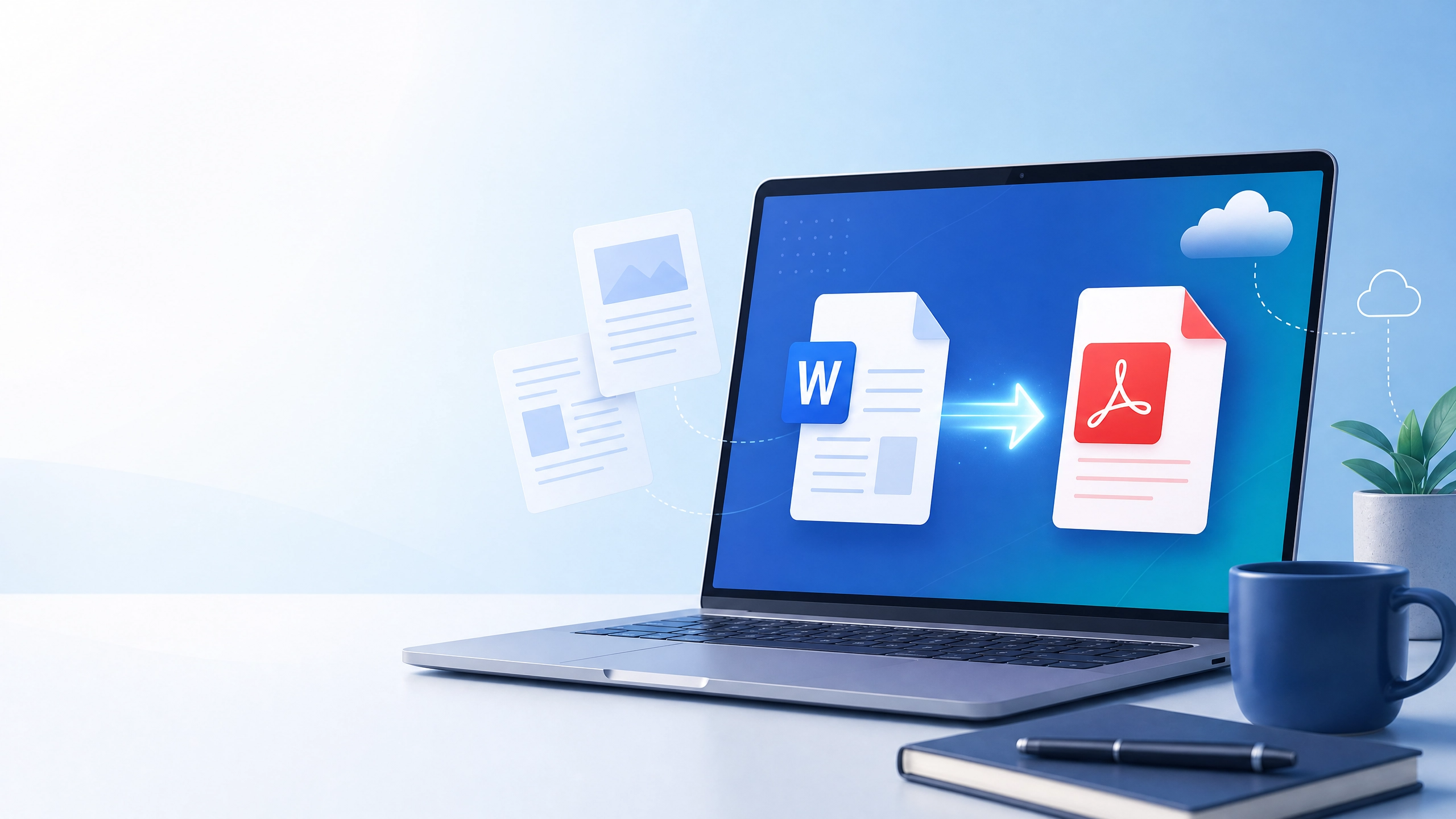
Convert Text to PDF Online Free Guide
Convert Text to PDF Online Free with SmartConvertMax: A Simple Guide
Converting a document can feel simple until formatting changes, fonts disappear, or the recipient cannot open the file. If you need to convert text to PDF online for free, SmartConvertMax provides a focused Word-to-PDF workflow in your browser.
Upload a .doc or .docx file up to 20 MB, select Convert now, and download the PDF without creating an account. You can also use Word’s built-in export or your computer’s print menu when a conversion is more suitable.
PDF is popular because it preserves a document’s appearance across devices. It is useful for resumes, forms, invoices, assignments, proposals, and files intended for reading rather than editing. This guide explains how to save Word as PDF and check the result before sharing.
What Does “Convert Text to PDF Online Free” Mean?
Converting text to PDF online for free means turning written content into a Portable Document Format file without paying for desktop software. You can start with a .txt file, Word document, or copied text.
A PDF stores a document’s visual structure, including page size, spacing, headings, images, and embedded fonts. ISO describes it as a format for exchanging and viewing electronic documents independently of the environment where they were created or printed.
A .docx file is designed for editing and collaboration, while a PDF is usually intended for viewing, printing, submitting, or archiving. A PDF is not automatically impossible to edit, so sensitive files should still be protected appropriately.
Why Convert a Text or Word File to PDF?
A PDF is often the best final format when the reader needs to see the document exactly as intended. Microsoft explains that Office applications can save or convert files to PDF without additional software, and that PDF is useful when a document should look the same on most computers or be prepared for printing.
The main benefits include:
Consistent layout: Margins, page breaks, headings, and images are less likely to shift.
Easy sharing: Most phones, tablets, browsers, and computers can open PDF files.
Professional presentation: A PDF is better suited to final delivery than an editable working file.
Print and archive readiness: PDFs are useful for printing and preserving final reports, receipts, contracts, and applications.
Security options: Depending on the software, you may add a password or remove comments before sharing.
The difference between PDF and Word is mainly purpose: Word is better for drafting, while PDF is better for final delivery. Keep both versions when future updates are likely.
How to Save a Word Document as a PDF
If you are wondering, “How do I save a Word document as a PDF?” the most reliable method is to use Word’s built-in export or Save As feature. The labels can differ slightly by device and version, but the process is usually similar.
Method 1: Save Word as PDF on a computer
Open the document in Microsoft Word.
Review the page layout, spelling, tables, links, and images.
Select File, then choose Save As, Save a Copy, or Export.
Select PDF from the file-type menu.
Choose a location and enter a clear filename.
Select Save or Publish.
Open the new PDF and check every page before sending it.
Microsoft’s desktop guidance also includes options for page ranges, tracked changes, bookmarks, accessibility tags, PDF/A archiving, and password encryption. These settings are useful when you need a specialized result rather than a basic PDF.
Method 2: Export Word for the web as a PDF
Word for the web provides a straightforward browser-based route. Select File, choose Export, and then select the PDF download option. Depending on the available choices, you may download the file without comments or include comments in the exported document.
This is useful when you are working on a shared computer or do not have the full desktop application. Before downloading, remove tracked changes and comments if the file is intended for a client, employer, school, or public submission.
Method 3: Use Print to PDF
If your application has no PDF export option, use the operating system’s virtual printer:
Open the text or Word file.
Select File > Print.
Choose Save as PDF, Microsoft Print to PDF, or a similar option.
Confirm the paper size, orientation, margins, and page range.
Select Print or Save and choose the destination folder.
This works in many applications, including web browsers and basic text editors. The main drawback is that interactive features, bookmarks, and some links may not transfer as well as they would through a native export.
How to Convert Text to PDF Online Free with SmartConvertMax
SmartConvertMax’s dedicated converter accepts Word documents in .doc and .docx formats, not raw .txt files. If your content is currently plain text, paste it into Word or another document editor first, apply basic formatting, save it as .docx, and then upload it. For a good result:
Remove unnecessary blank lines and repeated spaces.
Add a clear title and logical headings.
Check special symbols and accented characters.
Choose a readable font, margins, and line spacing.
Export with a descriptive filename, then open the PDF on another device to verify it.
SmartConvertMax states that files are processed in the browser session and automatically removed from its servers within 20 minutes. Even so, avoid uploading passwords, financial records, identity documents, confidential business plans, or health information to any online service unless its privacy terms meet your requirements. For highly sensitive work, use Word, LibreOffice, or your operating system’s local print-to-PDF function instead.
Common Mistakes to Avoid
A conversion can finish successfully while still producing a poor document. Check these issues before sharing:
Skipping the visual review
Look for blank pages, cut-off text, missing images, altered line breaks, and tables beyond the margin. Review several pages of a long file.
Leaving private comments or tracked changes
Comments and revisions may contain internal notes that were never intended for the final reader. Use the export settings to remove markup, then reopen the PDF to confirm that no private annotations remain.
Using the wrong quality setting
A minimum-size PDF may be useful for email or online forms, but it can make images appear blurry. A standard or print-quality setting is usually better for professional printing. Choose based on the document’s purpose rather than always selecting the smallest file.
Forgetting accessibility
Use meaningful headings, descriptive link text, sufficient contrast, and tags where possible. In Word, the option for document structure tags can help screen-reading software interpret the PDF. Accessibility is especially important for public documents and workplace materials.
Renaming a ZIP file as a PDF
A ZIP file to PDF conversion is not the same as changing a filename extension. A ZIP archive contains one or more files, while a PDF is a document format. To create a PDF from files inside a ZIP archive, extract the contents first, then convert the relevant text, image, or Word file. If the archive contains several documents, you may need to combine them into one PDF using a dedicated PDF tool.
Frequently Asked Questions
How do I save a Word document as a PDF without losing formatting?
Use Word’s built-in PDF export rather than copying and pasting the content into a new application. Check fonts, page breaks, images, tables, and hyperlinks after export. If a font cannot be embedded, replace it with a common font before saving.
Can I convert text to PDF online free on a phone?
Yes. On a phone, save the text as a supported Word document first, then open SmartConvertMax in a mobile browser and upload the .doc or .docx file. Review the downloaded PDF because small screens can hide layout problems.
Is PDF better than Word?
Neither format is always better. Word is better for editing and collaboration, while PDF is better for fixed presentation, printing, and final distribution. Save the original Word file when future changes are likely.
Can I compare two Word documents before converting them?
Yes. Word includes a comparison feature that can identify differences between two versions. If you are searching for how to compare two Word documents, compare and approve revisions first, then export the final version as a PDF.
Is there a cost of converting a document to PDF?
The cost can be zero with Word’s built-in export, a free office suite, print-to-PDF, or a trustworthy free service. Some websites charge for batch processing, OCR, editing, or advanced security features, so read the terms before uploading important documents.
Conclusion
Learning how to convert text to PDF online for free gives you a quick way to share polished documents without requiring every recipient to use the same writing software. For Word files, use File > Save As, Export, or Print to PDF. For plain text, improve the structure first and then choose a local or trusted online conversion method. Finally, inspect the file for formatting, privacy, accessibility, and print quality.
Keep the editable source, inspect the PDF, and share the final copy.
References
Suggested Internal Links for SmartConvertMax
More guides
guide
How Many Pages Is X Words? Complete Conversion Hub
How many pages is X words? Get the complete word-to-page conversion hub with charts, formulas, and links to every word count guide. Expert tips inside.
guide
How Many Pages Is 750 Words? Single & Double Spaced Guide
How many pages is 750 words? Get exact page counts for single-spaced, double-spaced, APA, MLA, and more. Includes a quick conversion chart and expert tips.
guide
Meters to Feet:Complete Guide
Convert meters to feet instantly. Get the exact formula, a full conversion chart, real-world examples, and answers to common m-to-ft questions.
guide
Miles to Kilometers: The Complete Conversion Guide
Miles to Kilometers: The Complete Conversion Guide