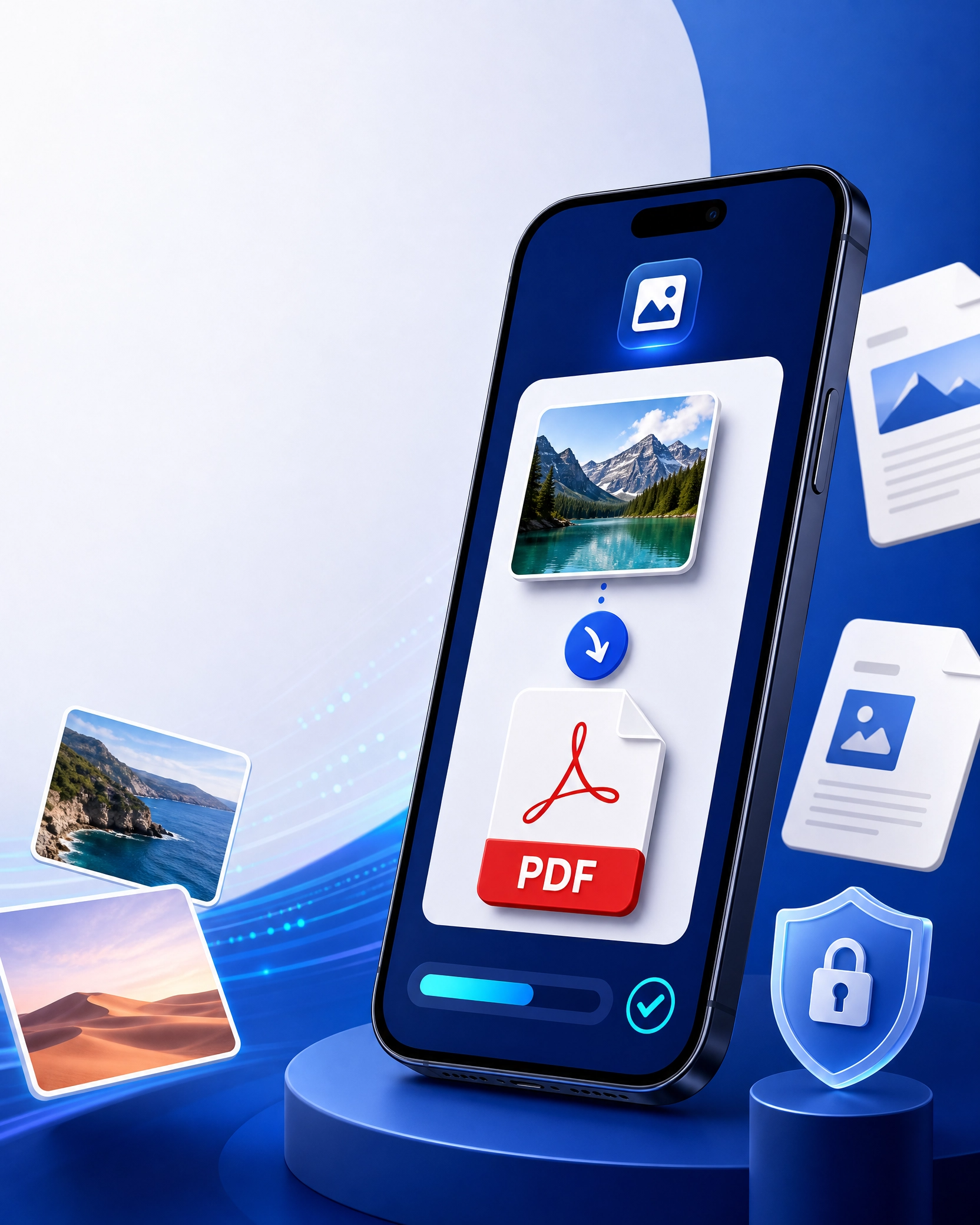
Convert Images to PDF on Mobile
Convert Images to PDF on Mobile: The Ultimate Guide for iPhone & Android (2026)
You snap a photo of an important contract, a whiteboard full of meeting notes, or a handful of receipts you need to submit for expenses. Now what?
The answer is surprisingly simple: you can convert images to PDF on mobile devices in seconds, using nothing but the phone already in your pocket. No scanner needed. No laptop required. Just you, your camera roll, and a few taps.
Whether you're an iPhone user or an Android enthusiast, turning photos into polished, professional PDF documents has never been easier. In this guide, I'll walk you through every method—from built-in phone features that cost nothing, to the best ad-free apps that keep your documents private and watermark-free.
Let's get started.
What Does It Mean to Convert Images to PDF on Mobile?
Converting images to PDF on a mobile device means taking one or more photo files—like JPG, PNG, HEIC, BMP, or TIFF—and transforming them into a single PDF document, all from your smartphone or tablet.
This isn't just about changing a file extension. A proper conversion preserves image quality, lets you reorder pages, and creates a document that's universally readable, shareable, and often searchable. Modern mobile converters offer batch processing, offline conversion for privacy, and clean output without watermarks or intrusive ads.
Think of it as turning your phone into a portable document scanner. One tap, and your photo becomes a professional PDF ready to email, print, or archive.
Why You'd Want to Convert Photos to PDF on Your Phone
There are plenty of good reasons to turn a picture into a PDF directly from your mobile device:
Speed: Convert and share in under a minute—no computer required
Convenience: Your camera is your scanner. Snap, convert, send
Privacy: Offline apps keep sensitive documents on your device, not in the cloud
Professional output: PDFs look cleaner than a folder of separate images
File organization: Bundle receipts, invoices, or portfolio images into one file
Universal compatibility: PDFs open on any device, anywhere
Who is this for? Students digitizing lecture notes. Professionals scanning contracts and business cards. Freelancers creating portfolios. Anyone tired of paper clutter and messy image folders.
The bottom line? If you've ever needed to share a photo as a proper document, converting it to PDF is the smartest way forward.
How to Convert Picture to PDF on iPhone (Built-In Method)
You don't need to download a single app to convert images to PDF on an iPhone. Apple includes a clever workaround using the Print feature. Here's how it works:
Step-by-Step Instructions:
Open the Photos app and select the image or images you want to convert
Tap the Share icon (the square with an upward arrow) at the bottom left
Scroll down and tap Print
Pinch outwards on the print preview with two fingers—this expands it into a full-page PDF view
Tap the Share icon again on the PDF preview
Choose Save to Files to store it, or share it directly via email, Messages, or AirDrop
Pro Tip: This method works for any image format—JPG, PNG, HEIC, and more. For multiple images, select them all before tapping Share, and they'll automatically be combined into a single multi-page PDF.
Alternative iPhone Method: Using the Files App
You can also create a PDF on iPhone directly from the Files app:
Open Files and navigate to the image
Tap the image, then tap the Share icon
Select Create PDF (if available) or use the Print method above
This built-in approach is fast, private, and completely free—perfect for quick conversions when you don't want to install anything new.
How to Convert Picture to PDF on Android
Android doesn't have a native "Print to PDF" feature quite as straightforward as iPhone's, but you have several excellent options that work just as well.
Method 1: Google Drive (Built-in on most Android devices)
Open the Google Drive app
Tap the + (Add) button and select Scan
Take a photo of your document or select from Gallery
Adjust the edges and tap Save
Your scan is now a PDF in your Drive
Method 2: Using a Free App
The easiest way to convert picture to PDF on Android is with a dedicated converter app:
Download a free image to PDF converter from Google Play
Open the app and grant access to your photo gallery
Select the image or images you want to convert
Tap Convert—your PDF is ready in seconds
Why it matters: Android's flexibility means you have dozens of high-quality, free options—many of which work entirely offline, keeping your documents private and secure.
What to Look For in a Converter App:
Offline processing – your files never leave your device (critical for privacy)
No watermark – clean, professional output
No signup required – convert instantly without creating an account
Batch conversion – combine multiple images into one PDF
Multiple format support – JPG, PNG, BMP, TIFF, and more
No ads – uninterrupted workflow
Expert insight: If privacy matters to you—and it really should—prioritize apps that process entirely offline. This means your sensitive documents, receipts, IDs, and contracts never leave your device. No uploads to unknown servers. No data retention. Just you and your phone.
How to Convert BMP to PDF on Mobile
BMP (Bitmap) files are uncompressed images that can be quite large. Converting them to PDF reduces file size while preserving quality—perfect for sharing or archiving.
On Android:
Many all-in-one PDF tools support BMP conversion. Apps like PDF Utils and Image to PDF Maker let you convert BMP to PDF directly from your gallery.
On iPhone:
The BMP Converter app on the App Store supports BMP to PDF conversion, along with many other formats.
Quick Steps:
Open your chosen converter app
Select the BMP image from your gallery or files
Choose PDF as the output format
Tap Convert and save your new PDF
Why it matters: BMP files are common in professional imaging and scanning workflows. Converting them to PDF makes them shareable, reduces storage space, and ensures compatibility across devices.
How to Convert TIFF to PDF on Mobile
TIFF (Tagged Image File Format) is a high-quality, lossless format often used for scanned documents, professional photography, and archival purposes. Here's how to convert TIFF to PDF on mobile:
On Android:
Apps like TIFF Converter and PDF Utils support TIFF to PDF conversion with offline processing.
On iPhone:
The TIFF Converter app on the App Store is designed specifically for this purpose—it converts TIFF images into high-quality PDF files quickly and securely.
Quick Steps:
Open your TIFF converter app
Select the TIFF file or files from your device
Choose PDF as the output format
Convert and save
Pro Tip: Multi-page TIFF files—common in document scanning—can be converted into a single multi-page PDF, preserving the original document structure perfectly.
How to Extract Images from a PDF on Mobile
Sometimes you need to go the other direction: extract images from a PDF so you can use them separately—perhaps for a presentation, a website, or a design project.
On Android:
Apps like PDF Snap let you extract all embedded images from a PDF or convert entire pages to high-quality images with adjustable DPI settings (150, 300, HD, UHD). You can export in PNG, JPEG, or WebP formats.
On iPhone:
You can use the Files app with Markup to select and save individual images from a PDF. For bulk extraction, apps like PDF to PNG or PDF Expert by Raddle are excellent choices.
Quick Steps:
Open your PDF in a converter or editor app
Select Extract Images or Convert to Images
Choose your output format (PNG, JPG, WebP)
Save the extracted images to your gallery
Why it matters: Extracting images from PDFs is essential for reusing graphics, photos, or diagrams in presentations, websites, or other documents. It's a reverse workflow that most guides overlook—but it's incredibly useful.
How to Convert PDF to TIFF Image on Mobile
For professional archival or high-quality printing, you might need to convert PDF to TIFF image format. TIFF is lossless and ideal for printing or archival, though files are larger than JPG or PNG.
On iPhone:
Apps like PDF to JPG support converting PDF pages to TIFF images alongside JPG and PNG.
On Android:
PDF Utils and similar tools offer PDF to image conversion with TIFF support.
Quick Steps:
Open a PDF converter app that supports TIFF output
Select your PDF file
Choose TIFF as the output format
Convert and save the images to your device
Use case: Legal, medical, and archival professionals often prefer TIFF for its lossless quality and widespread acceptance in document management systems.
Common Mistakes to Avoid When Converting Images to PDF on Mobile
Watch out for these pitfalls to ensure smooth, professional results every time:
Uploading sensitive files to the cloud – Always choose offline processing for private documents like IDs, contracts, or medical records
Using apps with watermarks – They make your documents look unprofessional and amateurish
Ignoring file size – High-resolution images create large PDFs. Consider compression if file size matters
Forgetting to reorder pages – Most apps let you drag and drop pages before converting—use this to get the sequence right
Not checking image quality – Blurry photos make blurry PDFs. Use good lighting and hold steady
Settling for ad-filled apps – There are plenty of free, ad-free alternatives—you don't need to tolerate interruptions
Overlooking batch conversion – Converting multiple images one by one wastes time. Use apps that handle batch processing
Frequently Asked Questions
How do I convert a picture to PDF on my iPhone without an app?
Use the Print method: open the photo in Photos, tap Share, select Print, then pinch outwards on the preview to create a PDF. Save to Files or share directly. It's completely free and built into iOS.
How do I convert multiple images to one PDF on mobile?
Select all the images before tapping Convert or Share. Most converter apps and the iPhone Print method will combine them into a single multi-page PDF in the order you've selected them.
Are image to PDF converter apps free?
Yes—many are completely free with no watermarks or limits. Some offer in-app purchases for extra features, but basic conversion is usually free. Apps like Microsoft Lens and Adobe Scan offer generous free tiers.
Is there a way to convert images to PDF offline on mobile?
Absolutely. Many apps like Photo to PDF (iOS), Pic2PDF (Android), and PDF Utils (Android) process entirely offline—no internet connection required. This is ideal for privacy-conscious users.
What is the best image to PDF converter app with no ads?
For iPhone, Photo to PDF offers offline, ad-free conversion. For Android, Pic2PDF and PDF Utils are excellent, ad-free options. Microsoft Lens is also completely ad-free and works on both platforms.
Can I convert BMP to PDF on my phone?
Yes. Apps like PDF Utils (Android) and BMP Converter (iPhone) support BMP to PDF conversion. BMP files are common in professional imaging and scanning workflows.
How do I extract images from a PDF on my iPhone?
Use the Files app with Markup to select and save individual images, or use a dedicated app like PDF to PNG or PDF Expert. For bulk extraction, third-party apps are more efficient.
Can I convert TIFF to PDF on mobile?
Yes. Apps like TIFF Converter (iPhone) and PDF Utils (Android) support TIFF to PDF conversion. This is especially useful for scanned documents and professional photography.
How to create a PDF on iPhone from a photo?
Open the photo in Photos, tap Share, select Print, pinch outwards on the preview, then tap Share again to Save to Files or send it. That's it—no app required.
What's the difference between JPG and PNG for PDF conversion?
JPG is better for photographs and smaller file sizes, while PNG preserves sharp edges and supports transparency—ideal for diagrams, logos, and text-heavy documents. Choose based on your content.
Conclusion
Converting images to PDF on mobile devices is one of those skills that saves you time, reduces stress, and makes you look incredibly professional—all from the phone already in your pocket.
We've covered the built-in iPhone method using the Print feature, Android options using Google Drive or free apps, the best ad-free converter apps for 2026, how to handle specialized formats like BMP and TIFF, and even reverse workflows like extracting images from PDFs or converting PDFs to TIFF.
Here's what matters most:
For quick, private conversions, use built-in methods or offline apps
For sensitive documents, always choose offline processing—never upload to unknown servers
For the best experience, choose ad-free apps with no watermarks
For professional workflows, learn the advanced formats (BMP, TIFF) that most guides ignore
Your next step: pick one method from this guide and try it right now. Convert a photo you already have on your phone into a PDF. Once you see how fast and easy it is, you'll wonder why you ever bothered with a scanner.
More guides
guide
How Many Pages Is X Words? Complete Conversion Hub
How many pages is X words? Get the complete word-to-page conversion hub with charts, formulas, and links to every word count guide. Expert tips inside.
guide
How Many Pages Is 750 Words? Single & Double Spaced Guide
How many pages is 750 words? Get exact page counts for single-spaced, double-spaced, APA, MLA, and more. Includes a quick conversion chart and expert tips.
guide
Meters to Feet:Complete Guide
Convert meters to feet instantly. Get the exact formula, a full conversion chart, real-world examples, and answers to common m-to-ft questions.
guide
Miles to Kilometers: The Complete Conversion Guide
Miles to Kilometers: The Complete Conversion Guide