How to Change Language to English on Any Device (Step-by-Step)
How to Change Language to English on Any Device
Do you need to change language to English on your phone, computer or favorite app? It happens often. A new phone may arrive in another language. A setting may change after an update. Or you may tap the wrong option by mistake.
The good news is that it only takes a minute. This guide shows you how to change language to English on Android, iPhone, Windows, Chrome, your Google Account, YouTube and Facebook. The steps follow the official help pages from Google, Apple and Microsoft. Menu names can change a little after an update, so look for the closest match.
What Does “Change Language to English” Really Mean?
Many people do not know that language settings work in layers. You may need to change more than one of them.
System language. This controls menus, settings and notifications on your device.
App language. Some apps follow your system language. Others have their own setting.
Account language. Your Google Account language affects Google services on the web.
Website language. Sites like YouTube and Facebook save their own language choice.
If one layer is still in another language, you may see a mix of languages. That is why a single change does not always fix everything.
Why Change Your Language to English?
Using the language, you know best makes life easier. It helps you:
Read menus and settings without guessing what a button does.
Fix problems faster, because most help guides are written in English.
Avoid mistakes. You will not delete or change something by accident.
Use apps with confidence, from banking to email.
Share a device with family or friends who also use English.
How to Change Language to English on Android
Android lets you set a system language and a different language for each app. These steps come from Google’s Pixel and Android help pages.
To change the system language:
Open the Settings app.
Tap System, then Languages & input, then Languages.
Tap Add a language and choose English. Pick your region, such as United States or United Kingdom.
Touch and drag English to the top of the list.
To change the language for one app:
Open Settings, then tap System, then Languages, then App languages.
Select the app you want to change.
Choose English.
Please note that the app must support language selection. If the setting does not work, check that you are online. You can also add English as a second language and try again.
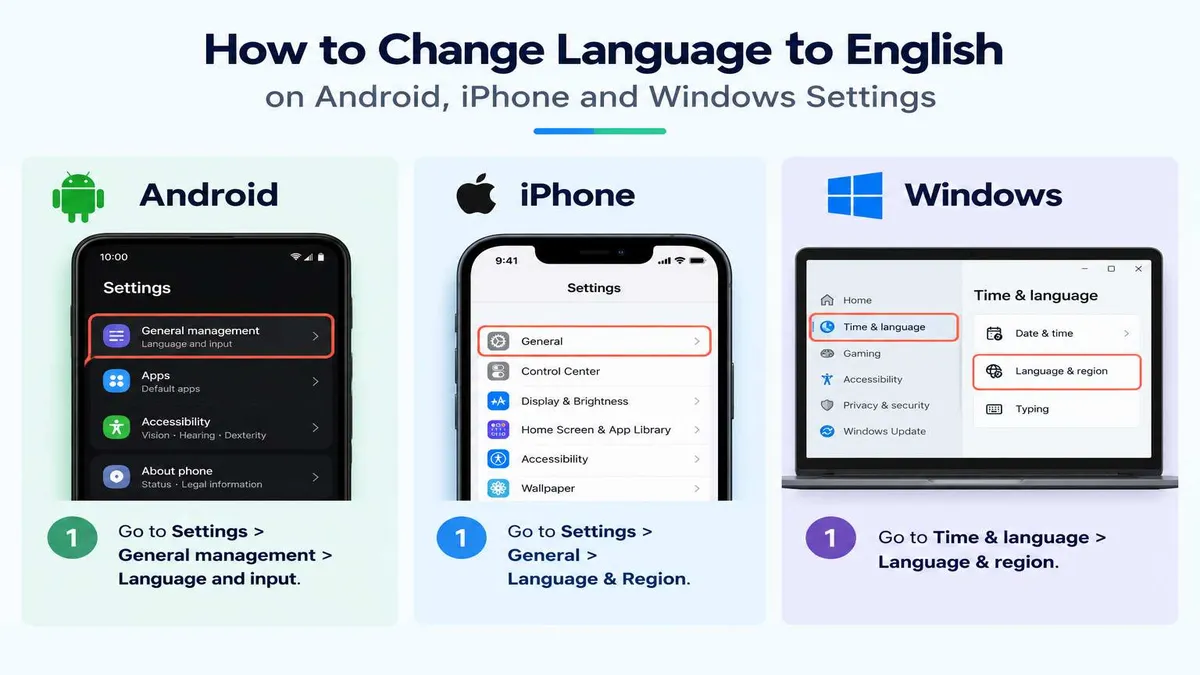
How to Change Language to English on iPhone
Apple makes this simple. The steps below follow Apple Support.
Open the Settings app.
Tap General.
Tap Language & Region.
Tap Add Language and select English.
A message will ask which language you want as your primary language. Tap Use English.
Your iPhone updates and shows the new language right away. The same steps work on an iPad.
How to Switch Windows 11 to English
Windows has a display language that controls Settings, File Explorer and more. The steps follow Microsoft Support.
Select Start, then Settings.
Go to Time & language, then Language & region.
Choose English from the Windows display language menu.
If English is not listed, select Add a language next to Preferred languages, and install it.
Sign out and sign back in to apply the change.
How to Change Chrome Language to English
Google Chrome Help explains how this works. It depends on your computer.
On Windows:
Open Chrome and select More (three dots), then Settings.
On the left, select Languages.
Under Preferred languages, select More next to English. If it is missing, click Add languages.
Select Display Google Chrome in this language.
Restart Chrome.
On Mac or Linux: Chrome follows the language of your computer. Change your system language first, and Chrome will match it.
This setting changes Chrome’s menus. It does not change the language of websites.
How to Change Google Language to English
Your Google Account language affects Gmail, Search and other Google services on the web.
Sign in and go to myaccount.google.com/language. You can also open your Google Account and select Personal info.
Click Language and choose English.
Close your browser and open it again.
According to Google Account Help, these steps only change the web. To change the language of mobile apps, update the language settings on your device. If it does not work, clear your browser’s cache and cookies and try again.
How to Change YouTube Language to English
YouTube Help says the language setting applies to the whole site, but videos stay in their original language.
On a computer: Click your profile picture, choose Language, and select English.
In the app: Tap your profile picture, then Settings, then App language, and choose English.
On a smart TV or console: Open Settings, select Language, and choose English. The TV app follows the device language by default.
The language is saved in your browser. If you clear your cache and cookies, you may need to set it again.
How to Change Facebook Language Back to English
Facebook menus change often, so follow the closest match.
On a computer:
Click your profile picture.
Select Settings & privacy, then Settings.
Click Language and region.
Choose English and save.
On the app:
Tap the menu.
Tap Settings & privacy, then Language (or Language and region).
Select English.
Facebook’s language setting applies to one device at a time. If you change it on your phone, your computer may stay the same.
What If You Cannot Read the Menus?
This is the hardest part. Here are some tips:
Follow the icons. The Settings app often uses a gear icon. The language option often has a globe icon or a letter “A.”
Match the order. The steps usually go in the same order on every phone, even in another language.
Use a second device. Open this guide on your computer and follow along on your phone.
Translate what you see. Type or paste the text into our translate text tool. If the text is in a screenshot, our OCR image tool can pull it out first.
Common Problems and Fixes
Only part of the screen changed. Check your system language, your app language and your account language.
The setting went back after a restart. Update your device and check that English is at the top of the list.
English is not in the list. Add it first, then set it as the main language.
A website is still in another language. Clear your browser’s cache and cookies and set the language again.
Dates and numbers look strange. This is often a region setting, not a language setting. Change the region too.
FAQs About Changing Language to English
How do I change my phone language to English?
On Android, go to Settings, System, Languages & input, then Languages and move English to the top. On iPhone, go to Settings, General, Language & Region and add English.
How do I change Google language to English?
Open your Google Account language page, choose English, and restart your browser.
How do I change Chrome language to English?
On Windows, open Chrome Settings, select Languages, and choose Display Google Chrome in this language next to English. Then restart Chrome.
Will it change the language of every app?
Not always. Some apps follow your system language, while others have their own setting.
Why does my language keep changing back?
Your account, region or device may be using a different language. Check all three and clear your browser’s cache if needed.
Can I use more than one language?
Yes. You can add several languages and keep English at the top for your main language.
Do I need to restart my device?
Sometimes. Windows asks you to sign out, and Chrome needs a restart.
Conclusion
Now you know how to change language to English on your phone, computer and favorite apps. Start with the system language, then check your apps and accounts. If a menu is hard to read, follow the icons or use a second device. When you need to understand text in another language, try our free translator, and remember that menu names may vary a little after updates.
More guides
guide
Yards to Miles: Formula, Chart, 1,000 & 500 Yard Answers
1,000 yards = 0.5682 miles. Divide yards by 1,760 to get miles. See 500-yard answers, a conversion chart, and how many yards to swim a mile.
guide
Kilometers to Centimeters (km to cm): Formula & Chart
Convert km to cm instantly: 1 km = 100,000 cm. Get the formula, a conversion chart, map scale examples, Excel tips and answers to common questions.
guide
Kilometer to Meter: 1 km in a Meter Formula & Chart
How many metres are in 1 km? 1 km = 1,000 m. Get the km to m formula, 1km to m and m to km charts, plus 1 mile to km. Free converter.
guide
Kilometer to Feet: Exact Formula, Conversion Chart & Running Guide
Convert kilometers to feet instantly. Get the 3,280.84 formula, a full km to feet and feet to km chart, running distances, and answers to common questions.