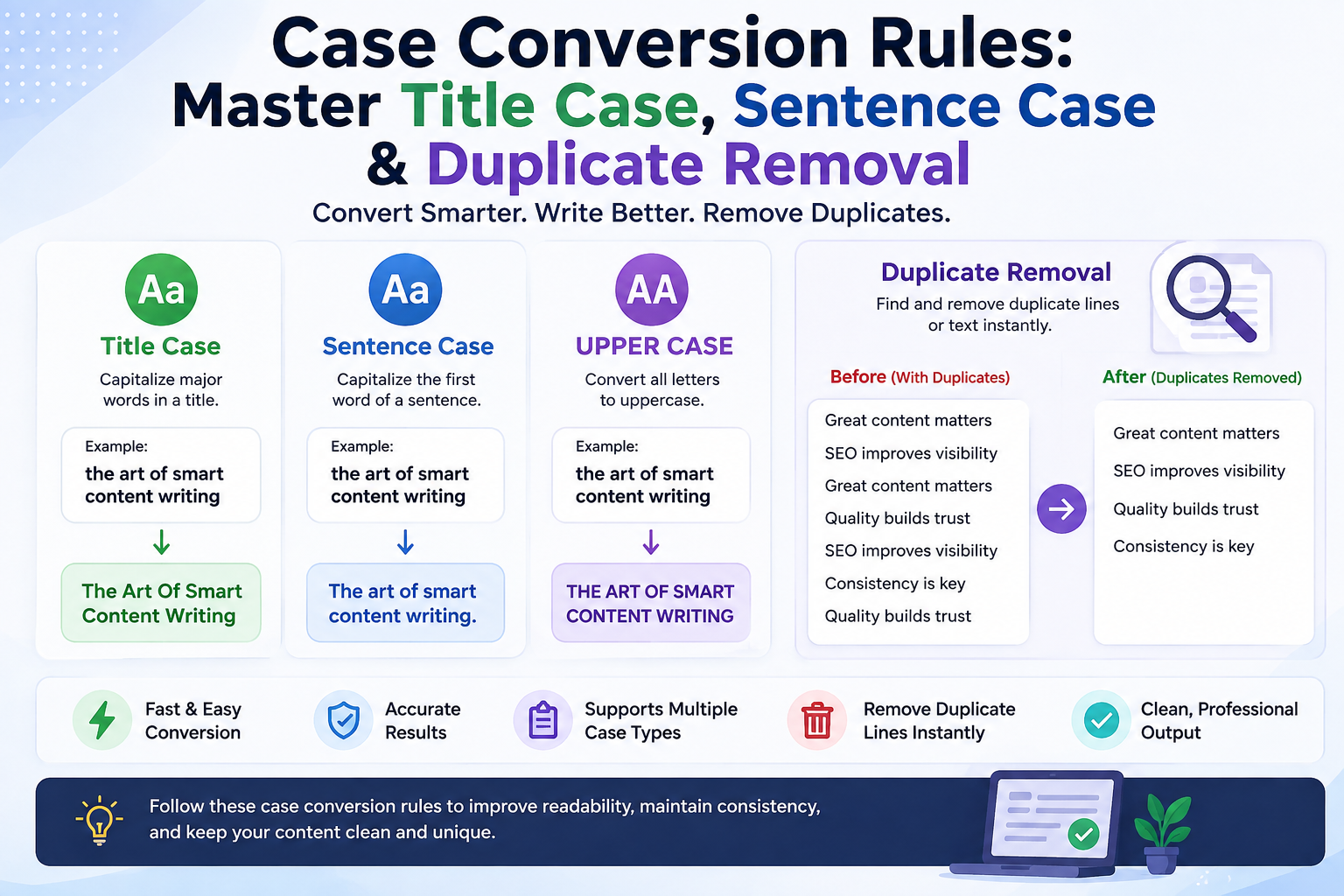
Case Conversion Rules
Case Conversion Rules: The Complete Guide to Perfect Text Formatting
Getting capitalization right matters more than most people realize. A misplaced capital letter in a headline can undermine your credibility. An inconsistent email list can tank your deliverability rates. Understanding case conversion rules—the guidelines for switching between uppercase and lowercase text—is a fundamental skill for writers, marketers, data analysts, and anyone who works with words or data on a daily basis.
This guide covers everything: the core case styles, the often-confusing rules of title case, practical methods for changing case in Microsoft Word, Google Docs, and Excel, and the essential but frequently overlooked practice of removing duplicate lines from your lists. Whether you are formatting a book manuscript, cleaning a 10,000-row spreadsheet, or simply wondering, "Is the word 'in' capitalized in a title?", you will find the answers here.
We have also integrated powerful free tools—the Smart Convert Max case converter and duplicate remover—to help you automate these processes quickly and safely.
The Four Core Case Styles
Before diving into edge cases, it is important to understand the foundational case types. Most text transformation falls into one of these four categories, as outlined by the writing experts at Purdue OWL and the APA Style guidelines.
Uppercase (ALL CAPS): Every letter is capitalized, such as
THIS IS UPPERCASE.It is best used for acronyms, visual emphasis, and standardized data entry (like state abbreviations).Lowercase (no caps): No letters are capitalized, like
this is lowercase.It is the standard for body text, email addresses, URLs, and coding variables.Title Case (Major Words Capitalized): Major words are capitalized while minor words like "and" or "the" are not, e.g.,
This Is Title Case.It is ideal for headlines, book titles, article headings, and blog post titles.Sentence case (first word only): Only the first word of a sentence and proper nouns are capitalized, e.g.,
This is sentence case.It is used for body text, captions, and a modern, clean style for headings.
Why It Matters: Choosing the correct case is not just about grammar; it is about readability and professionalism. Research from the Nielsen Norman Group on web usability consistently shows that sentence case is easier to scan and comprehend than uppercase text, which feels like shouting and slows reading speed.
Title Case: The Definitive Rulebook
If you have ever been stuck wondering, "Do you capitalize the word 'for' in a title?" or "Is 'that' capitalized in a title?", you are not alone. Title case is the most rule-heavy of all the styles, and the rules can vary slightly depending on which style guide you follow. The AP Stylebook, Chicago Manual of Style, APA Style, and MLA Handbook each have their own interpretations.
However, for most web content and general business writing, a simplified, modern version of these rules applies. Here is the breakdown, aligned with the guidance from Grammarly's educational resources.
What to Capitalize in Title Case
The First and Last Word: Always capitalize the first and last word of a title, regardless of what they are. (The End of the Road)
Nouns and Pronouns: Capitalize all common and proper nouns, as well as pronouns (The Art of War, You and I).
Verbs: Capitalize all action words, including short ones like "Is," "Are," and "Be." (Why We Run, To Be or Not to Be).
Adjectives and Adverbs: Capitalize descriptive words. (The Quick Brown Fox, A Very Good Story).
Subordinating Conjunctions: Capitalize longer conjunctions like "Because," "Although," "While," and "Where." (Because You Asked, Although It Rained).
What NOT to Capitalize in Title Case
Articles (a, an, the): Lowercase these unless they are the first or last word. (The Grapes of Wrath)
Short Prepositions (3 letters or fewer): Lowercase words like "in," "on," "at," "to," "by," "for," "of," "up," and "off." (Gone with the Wind)
Short Conjunctions (3 letters or fewer): Lowercase "and," "but," "or," "nor," "so," "yet," and "for." (Pride and Prejudice)
A Simple Decision Framework
Is this word the first or last word in the title?
Yes: Capitalize it.
No: Go to step 2.
Is this word a noun, pronoun, verb, adjective, or adverb?
Yes: Capitalize it.
No: Go to step 3.
Is this word a short preposition or conjunction (3 letters or fewer)?
Yes: Do not capitalize it.
No (it is a longer preposition/conjunction): Capitalize it (e.g., "With," "About," "Through," "Between").
Example:
Incorrect: The Lord Of The Rings: The Fellowship Of The Ring
Correct: The Lord of the Rings: The Fellowship of the Ring
For a quick visual reference, the American Copy Editors Society provides excellent downloadable cheat sheets that align with these principles.
How to Change Case in Word, Excel, and Google Docs
Knowing the rules is half the battle. The other half is applying them quickly. Manual retyping is inefficient and prone to errors. Here is how to automate case conversion in the most common software, following official documentation from Microsoft Support and Google Workspace Help.
How to Change Case in Microsoft Word
Microsoft Word has a dedicated feature for this, thoroughly documented in their official support pages.
Select the text you want to change.
Go to the Home tab on the ribbon.
Click the "Change Case" button (it has an "Aa" icon).
Choose from the dropdown menu:
Sentence case: Capitalizes the first letter of each sentence.
lowercase: Makes all selected text lowercase.
UPPERCASE: Makes all selected text uppercase.
Capitalize Each Word: Applies a simplified title case (note: this capitalizes every word, so you may need to manually fix prepositions).
tOGGLE cASE: Reverses the case of each letter.
Keyboard Shortcut: You can also use Shift + F3 to cycle through lowercase, UPPERCASE, and Capitalize Each Word. This shortcut is one of the most searched tips on Stack Overflow for Word productivity.
How to Change Case in Excel and Google Sheets
Spreadsheets require a formula-based approach. These are incredibly useful for cleaning large datasets.
UPPER: Converts all text to uppercase.
=UPPER(A1)
LOWER: Converts all text to lowercase.
=LOWER(A1)
PROPER: Capitalizes the first letter of each word.
=PROPER(A1)
For Google Docs: The process is similar to Word. Select text, go to Format > Text > Capitalization, and choose your option.
Why This Matters for Business: When you have a list of 5,000 email addresses from a trade show, some might be typed in all caps ("JOHN.DOE@GMAIL.COM") and others in mixed case ("John.Doe@Gmail.com"). Email servers are technically case-insensitive for the domain part, but using a consistent lowercase format is a data hygiene best practice recommended by data management professionals. Using the =LOWER() function on the entire column ensures consistency in seconds.
The Critical Next Step: Removing Duplicate Lines
Case conversion is often the first step in a larger data cleaning workflow. The second, equally important step is removing duplicate lines.
Imagine you have a mailing list, a list of keywords for SEO, or a set of survey responses. You might have the same entry listed multiple times. Sending duplicate emails annoys prospects. Duplicate keywords waste your PPC budget. Removing duplicates is essential for data integrity, a concept emphasized in NIST data management guidelines.
How to Remove Duplicates Online
For quick, one-off lists, an online duplicate remover is the fastest solution. The Smart Convert Max duplicate remover is a free tool designed to streamline this exact workflow.
Copy your list of text lines.
Open the duplicate remover tool.
Paste your text into the input box.
Click the "Remove Duplicates" button.
The tool instantly processes the list, preserving the first instance of each line and deleting all subsequent copies.
Copy the cleaned list and use it wherever you need.
How to Remove Duplicates in Excel
For data already in a spreadsheet, you do not need an online tool. Microsoft provides clear instructions in their official documentation.
Select the range of cells or the entire column.
Go to the Data tab.
Click Remove Duplicates.
In the dialog box, ensure "My data has headers" is checked if applicable.
Click OK. Excel will remove all duplicate rows and give you a summary of how many were removed.
A Warning on Data Privacy
A critical piece of advice from industry professionals and echoed by USA.gov's privacy guidelines: never paste sensitive personal data into a random online tool.
If you are cleaning a list of customer emails, phone numbers, or financial data, always use a trusted tool or, better yet, use a desktop application like Microsoft Excel or a code editor like Notepad++. The Notepad++ official documentation shows how to use line operations (Edit > Line Operations > Remove Duplicate Lines) that run locally on your machine, keeping your data private. However, for non-sensitive text lists, the Smart Convert Max text tools are safe and convenient.
U.S. Style Guide Differences: AP vs. Chicago
For professional writers in the United States, the two dominant style guides are the Associated Press (AP) Stylebook and the Chicago Manual of Style. Their title case rules differ in one significant way: prepositions, as detailed by Purdue OWL's style guide comparisons.
AP Style: Lowercases prepositions of four or more letters. This means you would lowercase "with," "from," "over," and "into" in a title. Example: The Man With the Golden Gun. AP is the standard for journalism, marketing, and public relations, and is the default style for most digital content.
Chicago Style: Capitalizes all prepositions regardless of length, except when they are used adverbially. Example: The Man with the Golden Gun. Chicago is the standard for book publishing and academic writing, as recommended by the Chicago Manual of Style online.
Expert Insight: Consistency is more important than perfection. If you are not bound by a specific style guide, pick one set of rules and apply it uniformly across all your content. The Editorial Freelancers Association emphasizes that consistent style application builds reader trust and avoids confusion.
Accessibility Considerations: Why Case Choice Matters
The Web Accessibility Initiative (W3C) provides clear guidance on text formatting for accessibility. Their research indicates that uppercase text is significantly harder for users with dyslexia and cognitive disabilities to read.
Long blocks of all caps have no visual variation in letter height, making it difficult for the brain to recognize word shapes. Sentence case or lowercase text provides natural visual cues that aid comprehension. For body text, always prioritize sentence case.
Additionally, screen readers may interpret all caps as acronyms and spell out words letter by letter, creating a frustrating experience for visually impaired users. The Nielsen Norman Group has published multiple studies confirming that mixed case text performs better in usability testing.
Common Mistakes and How to Avoid Them
Using ALL CAPS for body text. This is the digital equivalent of shouting. It is hard to read and makes your content feel aggressive. Use bold or italics for emphasis instead, as recommended by Grammarly's writing guidelines.
Inconsistent title case. Writing "The Art of War" in one paragraph and "The Art Of War" in the next. Use a title case converter tool like the Smart Convert Max case converter to standardize headings.
Capitalizing every word in a heading. Some people think every word in a title should be uppercase. This is incorrect and looks amateurish. The AP Stylebook specifically advises against this practice.
Ignoring data case consistency. Having a CRM full of names in all caps ("JOHN SMITH") looks unprofessional. Use the
PROPER()function in Excel to fix this quickly.Forgetting to remove duplicates. Even after fixing case, duplicate entries can slip through if one is "John Smith" and the other is "JOHN SMITH". Run a case conversion first, then remove duplicates using the Smart Convert Max duplicate remover.
FAQs: People Also Ask
1. What is the shortcut to change case in Word?
The keyboard shortcut to change case in Microsoft Word is Shift + F3. This toggles selected text through lowercase, UPPERCASE, and Capitalize Each Word. This is documented on Microsoft Support.
2. How do I change lowercase to uppercase in Google Sheets?
Use the =UPPER() function. For example, if cell A1 contains "hello," typing =UPPER(A1) in another cell will return "HELLO." The Google Workspace Help provides full documentation on this function.
3. Is there a way to remove duplicates in Excel without a formula?
Yes. You can use the built-in feature. Select your data, go to the Data tab, and click Remove Duplicates. This works without any formulas, as outlined in Microsoft's official Excel documentation.
4. What is the difference between "Capitalize Each Word" and title case?
In Microsoft Word, "Capitalize Each Word" capitalizes every word, including articles and short prepositions. True title case follows style guide rules from resources like Purdue OWL and leaves those minor words lowercase.
5. Do you capitalize the word "from" in a title?
It depends on the style guide. In AP Style, you lowercase it as a preposition. In Chicago Style, you would capitalize it. For most web content, AP style is a safe standard, as confirmed by Grammarly's title case guide.
6. Is all caps bad for SEO?
Not directly, but it is bad for user experience. The Nielsen Norman Group has shown that readability impacts engagement. If visitors find your content hard to read and leave, it can increase bounce rate, which can indirectly hurt rankings.
7. How to remove duplicate lines from a text file using Notepad++?
Open the file in Notepad++, go to Edit > Line Operations > Remove Duplicate Lines. This will clean the file instantly without an internet connection. The Notepad++ official site documents this feature thoroughly.
8. When should I use sentence case vs title case?
Use sentence case for body text and when you want a modern, approachable tone for headings. Use title case for formal documents, book titles, and when you want a headline to look structured and authoritative. The APA Style recommends sentence case for headings in many academic contexts.
Conclusion
Mastering case conversion rules is a small effort with a big payoff. It elevates your professionalism, ensures your data is clean, and saves you countless hours of tedious manual work. By understanding the nuances of title case, knowing how to quickly change case in your software, and consistently removing duplicate lines, you take full control of your text and data.
The next time you are faced with a messy spreadsheet or a confusing headline, do not panic. Apply the decision framework from this guide, use the built-in tools in Word and Excel, or automate the process with the Smart Convert Max case converter and duplicate remover to handle everything in one place.
For further learning, explore the authoritative resources referenced throughout this guide, including Purdue OWL, Microsoft Support, and the AP Stylebook. Start with one document or list today, and you will immediately feel the difference that clean, consistent text makes.
More guides
guide
How Many Pages Is X Words? Complete Conversion Hub
How many pages is X words? Get the complete word-to-page conversion hub with charts, formulas, and links to every word count guide. Expert tips inside.
guide
How Many Pages Is 750 Words? Single & Double Spaced Guide
How many pages is 750 words? Get exact page counts for single-spaced, double-spaced, APA, MLA, and more. Includes a quick conversion chart and expert tips.
guide
Meters to Feet:Complete Guide
Convert meters to feet instantly. Get the exact formula, a full conversion chart, real-world examples, and answers to common m-to-ft questions.
guide
Miles to Kilometers: The Complete Conversion Guide
Miles to Kilometers: The Complete Conversion Guide